Computer + Phone
Use a computer for the setup page and scan the QR code with your phone.
Phone or Tablet Only
Complete the full setup on a single mobile device — no computer needed.
Choose a guide below
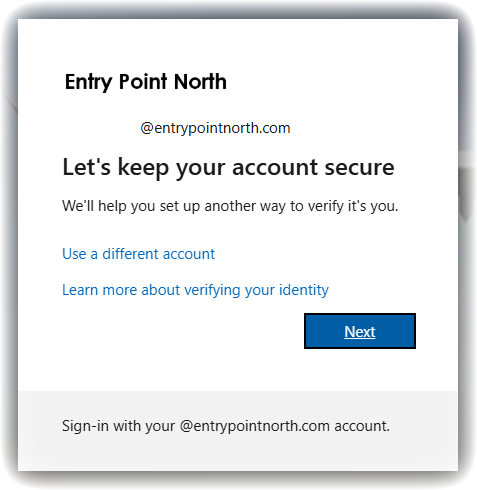
Step 1 — Let's keep your account secure
- 1On your computer, go to aka.ms/MFASetup and sign in with your Entry Point North account.
- 2You will see the screen "Let's keep your account secure" — click Next to begin.
Step 2 — Install Microsoft Authenticator
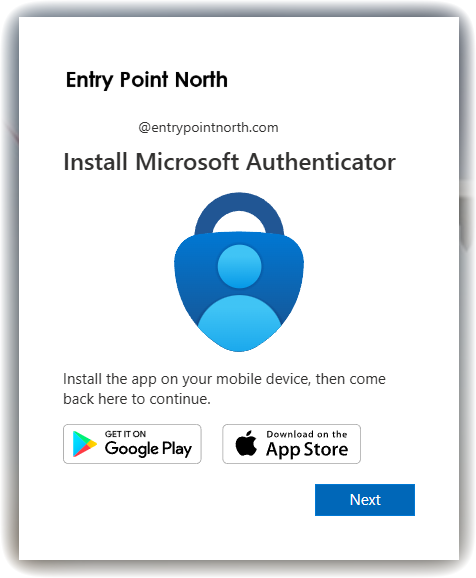
- 1You will see the "Install Microsoft Authenticator" screen on your computer.
- 2On your phone, download Microsoft Authenticator from the Google Play Store (Android) or App Store (iPhone).
- 3Once installed, return to your computer and click Next.
Step 3 — Set up your account in the app
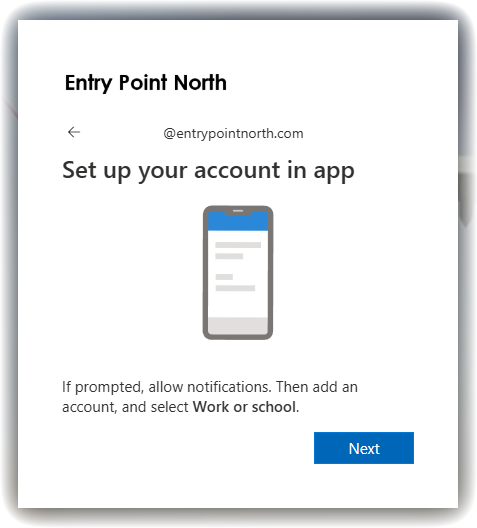
- 1Your computer will show the "Set up your account in app" screen.
- 2Open the Microsoft Authenticator app on your phone and allow notifications when prompted.
- 3In the app, tap Add account and select Work or school account.
- 4Return to your computer and click Next.
Step 4 — Scan the QR Code
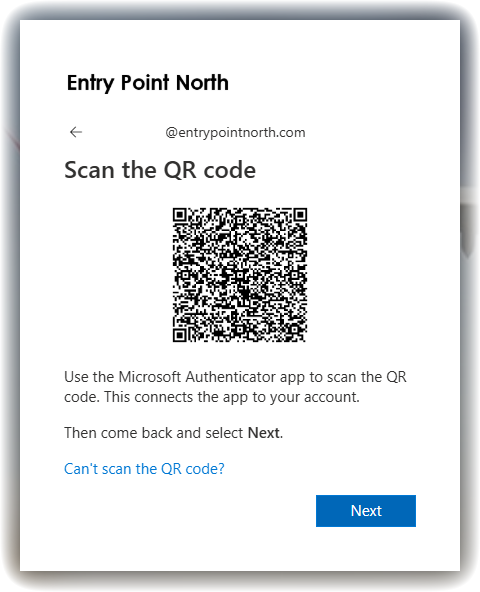
- 1Your computer will display a QR code on the "Scan the QR code" screen.
- 2In the Authenticator app on your phone, tap Scan a QR code and point your camera at the QR code on the screen.
- 3Once scanned successfully, return to your computer and click Next.
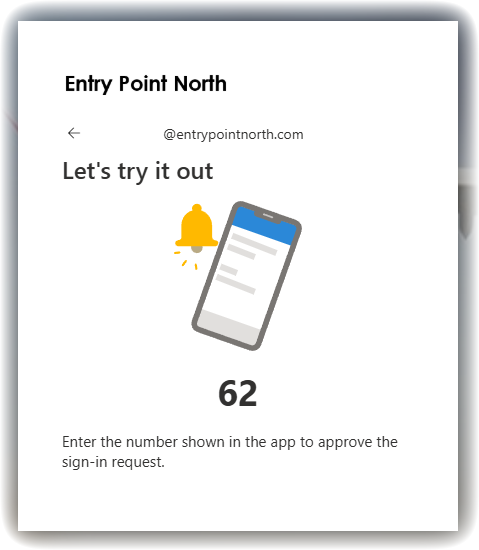
Step 5 — Let's try it out
- 1Your computer will show a number on the "Let's try it out" screen — for example 62.
- 2Open the Microsoft Authenticator app on your phone — it will ask you to enter a number to approve the sign-in.
- 3Enter the number shown on your computer screen into the app to approve.
Step 6 — Authenticator Added
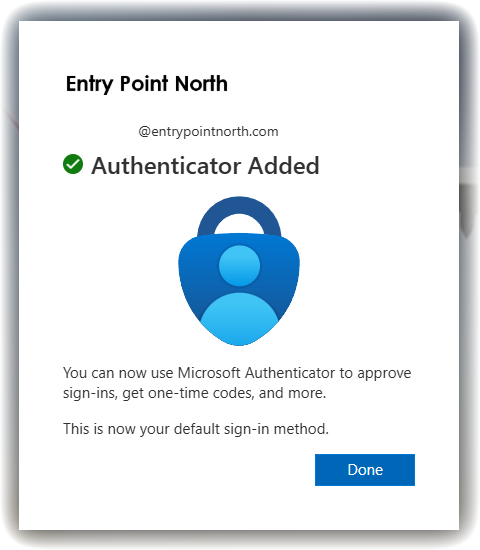
- 1Your computer will show "Authenticator Added" confirming the setup is complete.
- 2You can now use Microsoft Authenticator to approve sign-ins and get one-time codes.
- 3Click Done to finish.
Step 1 — Install Microsoft Authenticator
- 1Open the App Store (iPhone/iPad) or Google Play Store (Android).
- 2Search for Microsoft Authenticator and install it.
- 3Open the app briefly to accept any permissions — you will return to it later.
Step 2 — Open the Setup Page in your Browser
- 1On the same device, open Safari, Chrome, or your preferred browser.
- 2Navigate to aka.ms/MFASetup and sign in with your Entry Point North account.
- 3When prompted with "More information required", tap Next.
- 4Select Microsoft Authenticator as your method and tap Next.
Step 3 — Pair your account using the link
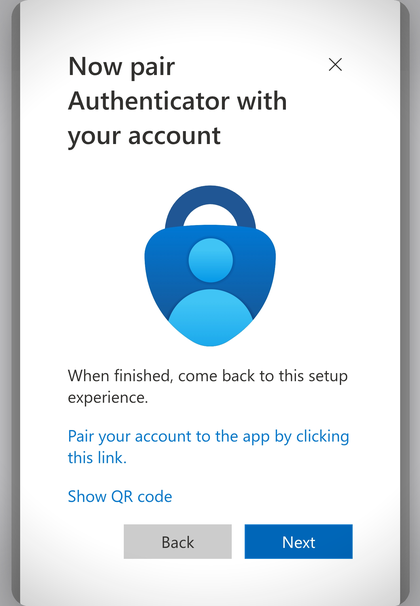
- 1On the "Now pair Authenticator with your account" screen, you don't need to scan a QR code since the app and the browser are on the same device.
- 2Tap the blue link "Pair your account to the app by clicking this link."
- 3Your device will switch to the Microsoft Authenticator app automatically, and your account will be added.
- 4Switch back to your browser tab and tap Next to continue.
Step 4 — Approve the Test Notification
- 1In your browser, tap Next — a test notification will appear in the Authenticator app.
- 2Switch to the Authenticator app and tap Approve.
- 3Switch back to the browser, tap Next, then Done.
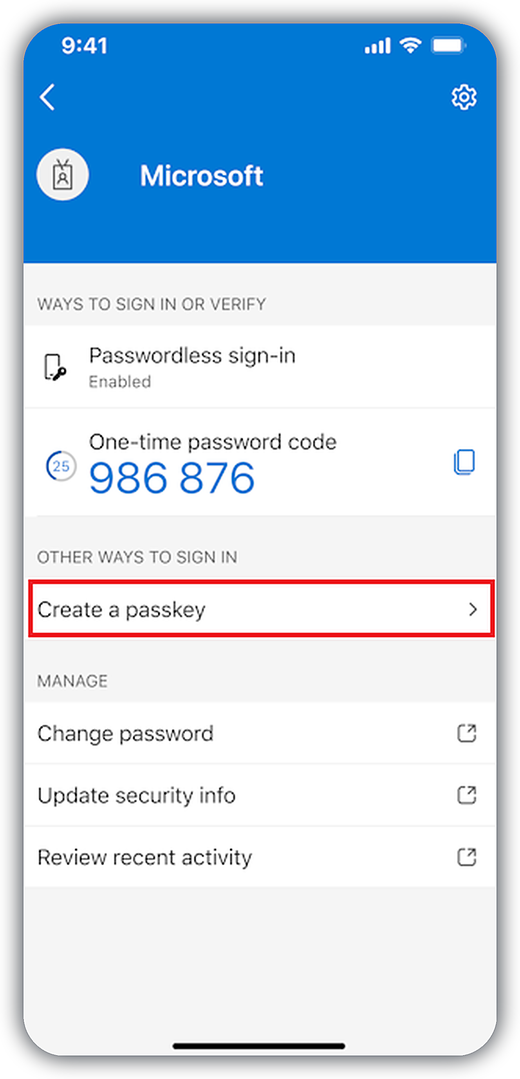
Step 1 — Start creating your passkey
- 1Open Microsoft Authenticator on your phone or tablet.
- 2Tap your Entry Point North account in the list.
- 3Tap Create a passkey.
Step 2 — Verify it's you
- 1Complete multi-factor authentication (MFA) when prompted, to confirm your identity.
- 2If you don't already have one, you'll be asked to set up a screen lock (PIN, fingerprint, or face unlock) on your device — this protects your new passkey.
Step 3 — Turn on Authenticator as a passkey provider
- 1Tap Settings when Authenticator asks you to enable it as a passkey provider.
- 2On iPhone/iPad: go to Settings → General → Autofill & Passwords (iOS 18) or Settings → Passwords → Password Options (iOS 17). Turn on AutoFill Passwords and Passkeys, and make sure Authenticator is selected under "AutoFill From".
- 3On Android: open Passwords & accounts, then under Additional providers, make sure Authenticator is selected. (Exact steps vary by phone manufacturer.)
- 4Return to the Microsoft Authenticator app.
Step 4 — Finish and confirm
- 1Tap Done to confirm Authenticator as a passkey provider.
- 2You'll now see Passkey listed as a sign-in method for your account.
- 3Tap Done again to finish.
Need further help? Contact your IT support team or visit the MFA Setup page directly.